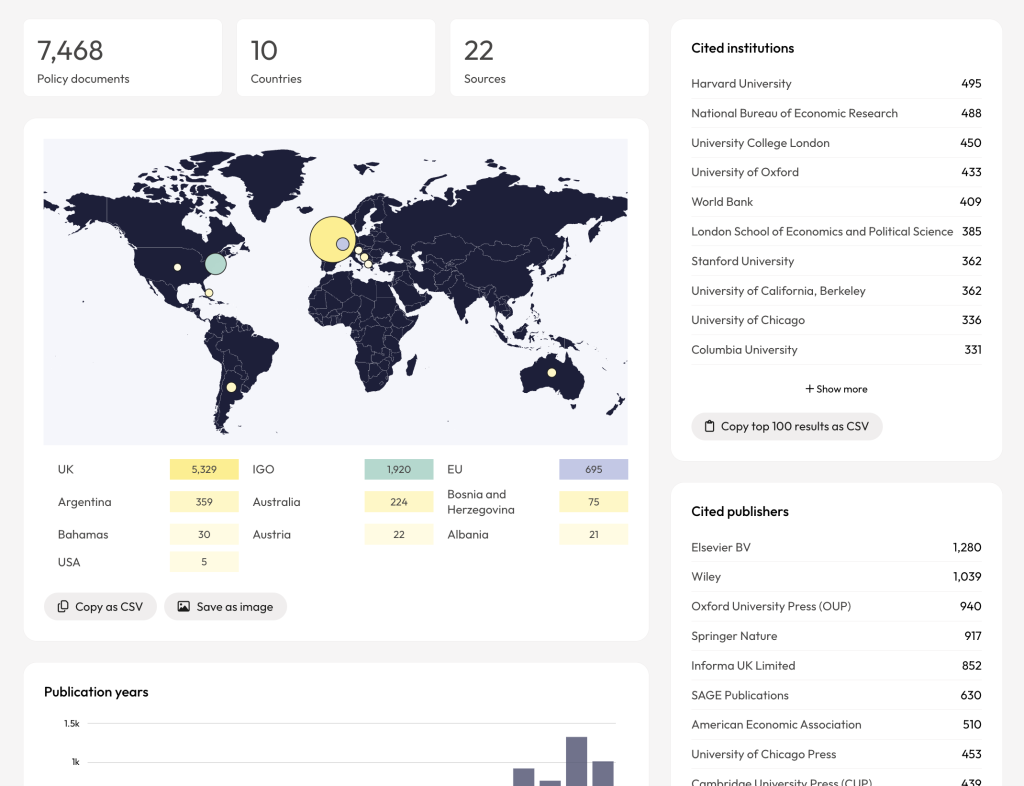
Find citations of scholarly research in policy documents that are connected to your organisation.
Find policy citations and mentions connected to your organisation
Search shortcuts and filters to help you quickly find all the policy documents that cite scholarly research and mentions of authors from your organisation. This can be helpful when you are looking for evidence of institutional influence in the policy space. Here are some searches you can try:
1. Search from the main dashboard search box (find policy documents that include your organisation’s name)
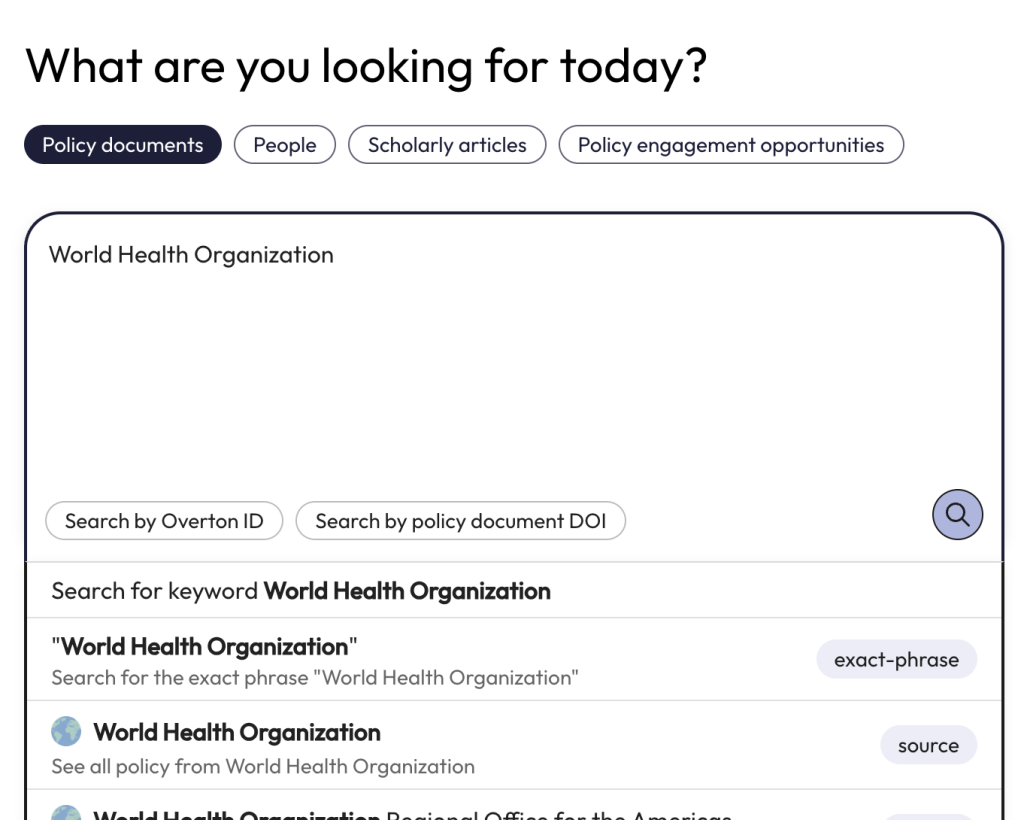
Type your organisation’s name into the search box, ensuring ‘Policy documents’ is selected at the top. A dropdown will appear. Select one of the suggested searches or search using the text you have typed into the search box.
This searches the full text of all policy documents in Overton. To ensure you find the exact name of your organisation, use quotes (ex. “University of Chicago”) or select the “exact-phrase” option from the drop-down menu.
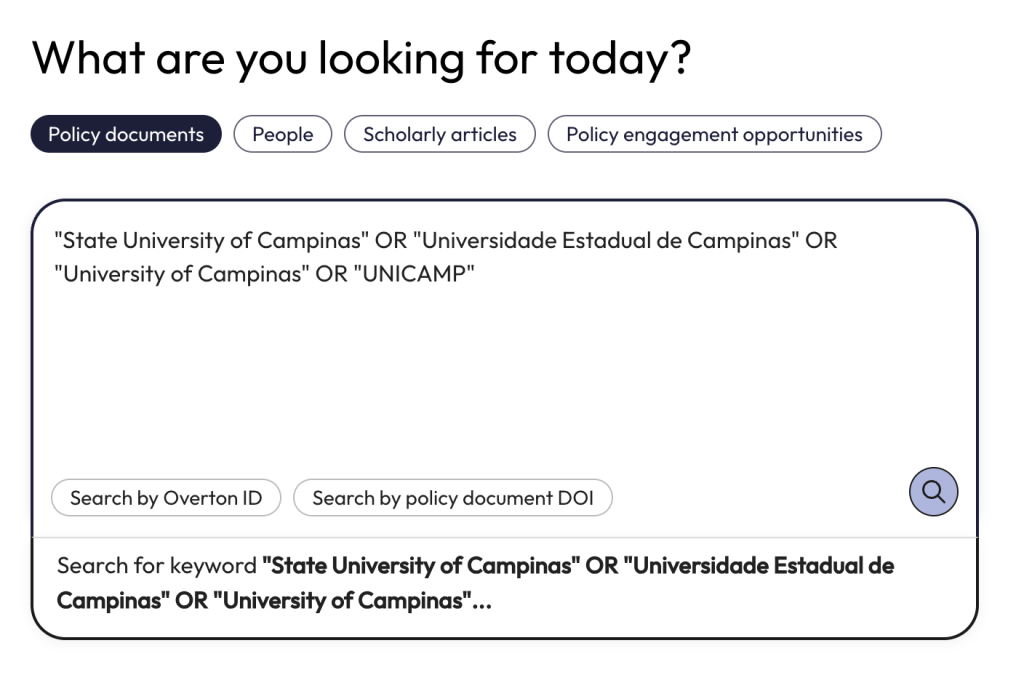
If your organisation has multiple names, you can include each name in quotes, separated by OR. For example, “State University of Campinas” OR “Universidade Estadual de Campinas” OR “University of Campinas” OR “UNICAMP.”
2. Search using search shortcuts on the main page
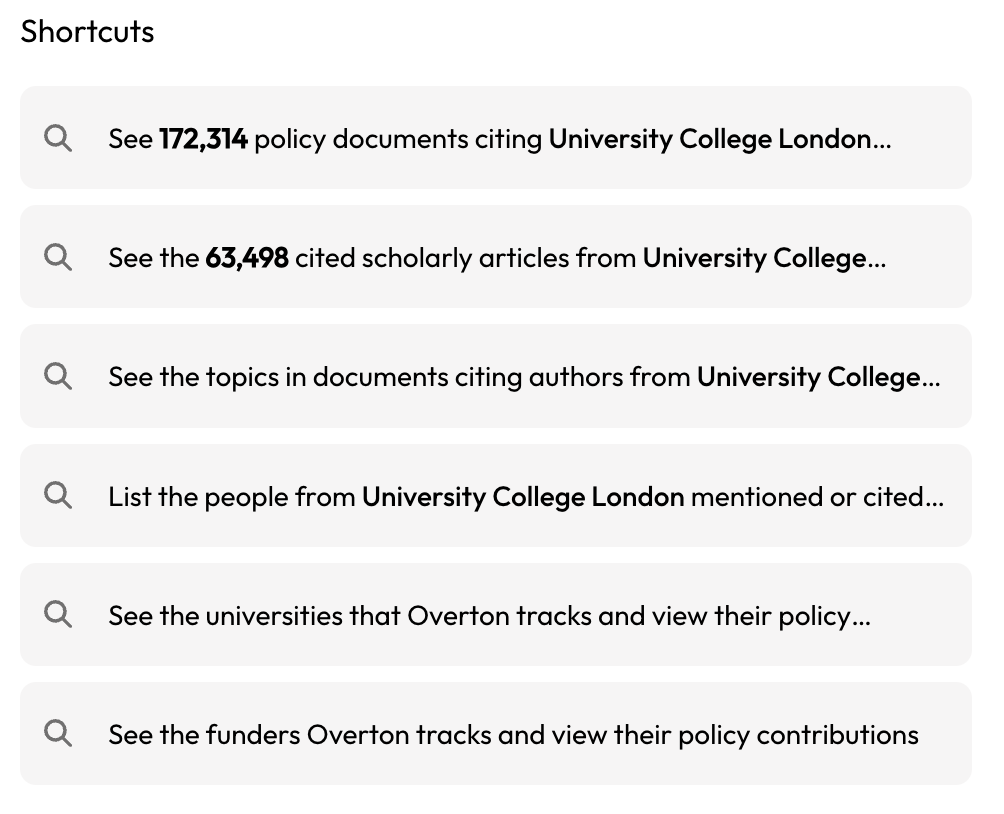
The start page includes Shortcuts that are customised to your organisation. Use these shortcuts to quickly see:
- policy documents that cite your organisation,
- articles from your organisation that are cited in policy,
- topics from those citing policy documents,
- people from your organisation who are cited or mentioned in policy,
- all of the institutions that Overton tracks,
- and the funders whose funded works have been cited in policy.
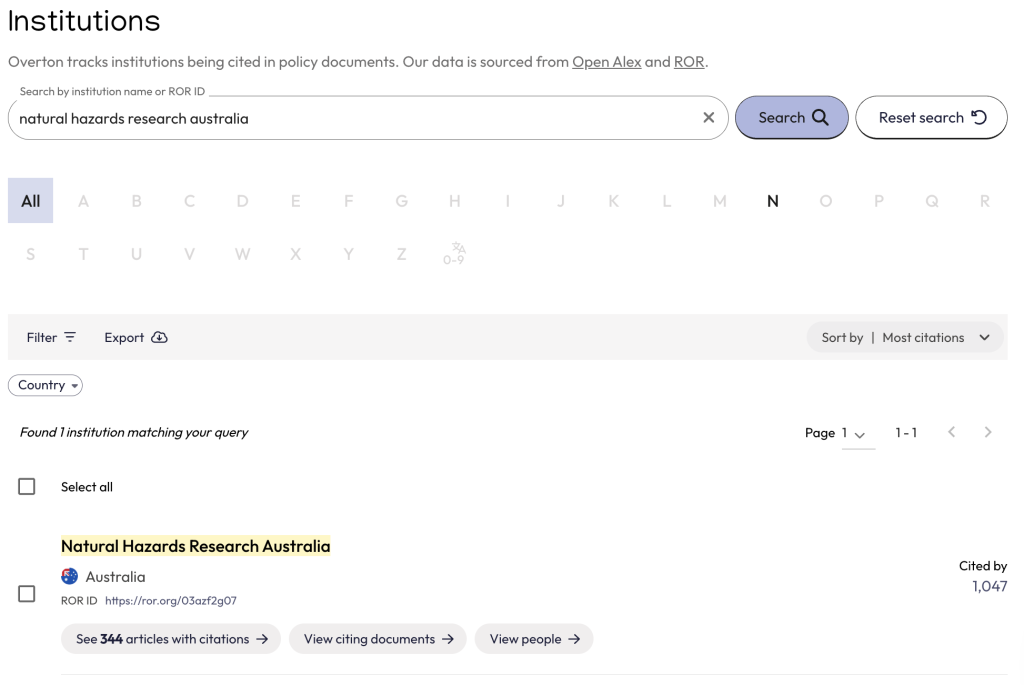
3. Search from the Institutions data Index
You can see all of the organisations that Overton tracks by clicking “Explore the data” and then “Institutions” at the top of any page. This data is sourced from OpenAlex and ROR.
Use the search box to find an organisation. The results list includes the articles with that organisation’s affiliation and a “cited by” number – this is the number of policy documents that cite articles affiliated with the organisation.
You can also filter by country, export your results, or sort by number of articles or citations.
4. Search from the policy document search
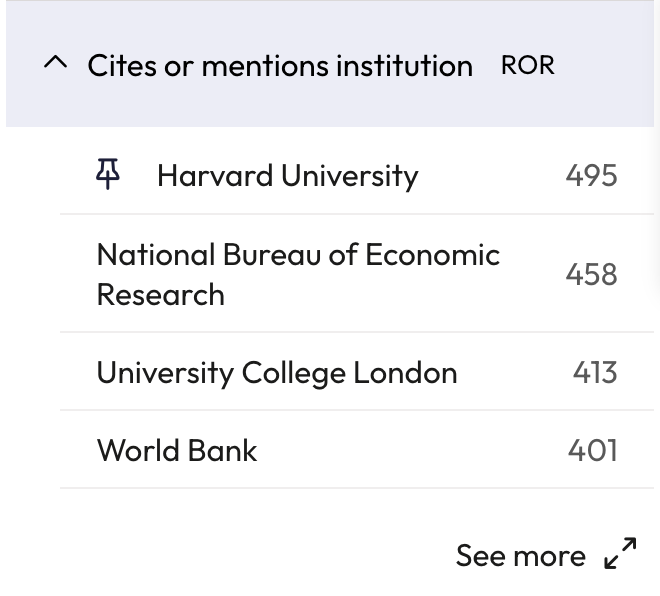
You can also search for your organisation at any time from the policy documents results page.
- The “Cites or mentions institution” filter shows policy documents that cite research from, or mention people affiliated with, a selected institution
- Your organisation will always be pinned at the top.
- Click “show more” to see and select multiple organisations at once.
Video Overview: Search for citations in policy for your organisation
Understanding your results
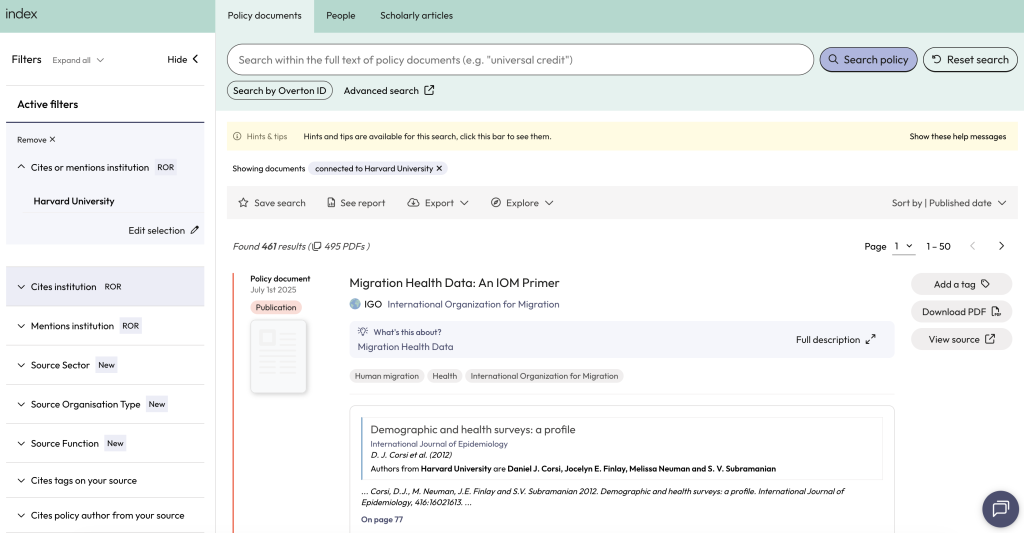
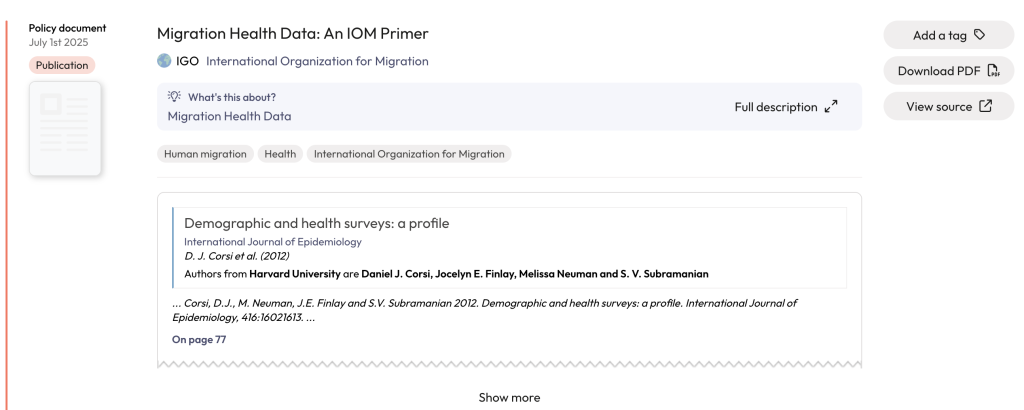
Once you have either (1) performed a keyword search for your organisation’s name, (2) used one of the shortcuts on the start page, (3) used the Institution data, or (4) applied an affiliation filter, you will see a set of results displaying policy documents with research citations for individuals affiliated to your organisation. For more information, see ‘How to read policy document results.’
Applying filters
If you applied a filter, followed a shortcut, or used the Institution data to find your results, this will now be added as the first filter on the left side of your screen.
You can then use other filters to narrow your results down to a specific type of data. To assess organisational policy impact, you may want to use:
- Date filters to see policy documents published in the past year or another time frame.
- Region or country filters to limit your results to a certain geographical area.
- Source filters to see what government or private sector policy documents cite your research.
- SDG or topic filters to see what larger areas your organisation’s research is contributing to.
For a full list of filters, see Policy document filters.
Exporting your results
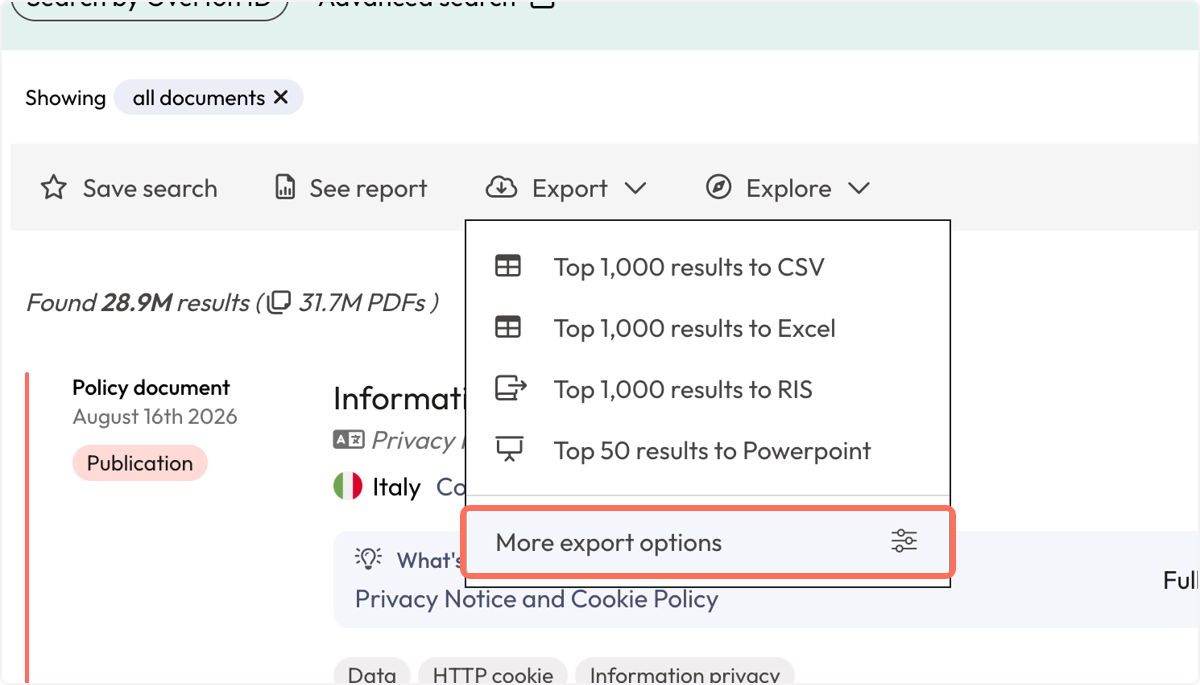
Once satisfied with your search, you can save it, generate a summary report, export the results, or explore them further using ‘Explore’.
Use the “Export” at the top of your results to export to CSV, Excel, RIS, or PowerPoint or choose ‘More export options’ for the full export experience where you can customise the type of export you want to use, the number of results, the fields you want in the export and how you want to export your file.
See: Exporting policy document results for more details.
Summary reports
You can also view a report of your policy documents by clicking “See report.” Reports give you a good picture of your results and are especially helpful for larger result sets. You can see which countries are citing your organisation’s research, the types of documents and sources that cite your research, and how these citations align with SDGs, COFOG Divisions, subject areas, and research topics.
For more information, please see Summary reports for policy documents.