
Learn how our advanced search query builder works and which search strategies you can use in Overton Index.
Our advanced search query builder guides you to create effective, precise searches. It helps you build complex queries, apply search strategies as they function in Overton Index, and refine your search with the query visualiser.

Using the query builder
This step-by-step guide introduces the query builder and shows you how to construct a simple search query for policy documents.
Directory of advanced search strategies
Boolean operators
- Operators like AND, OR and NOT combine search terms and control how terms relate within a query.
- Select operators from the dropdown that appears after a search term is entered.
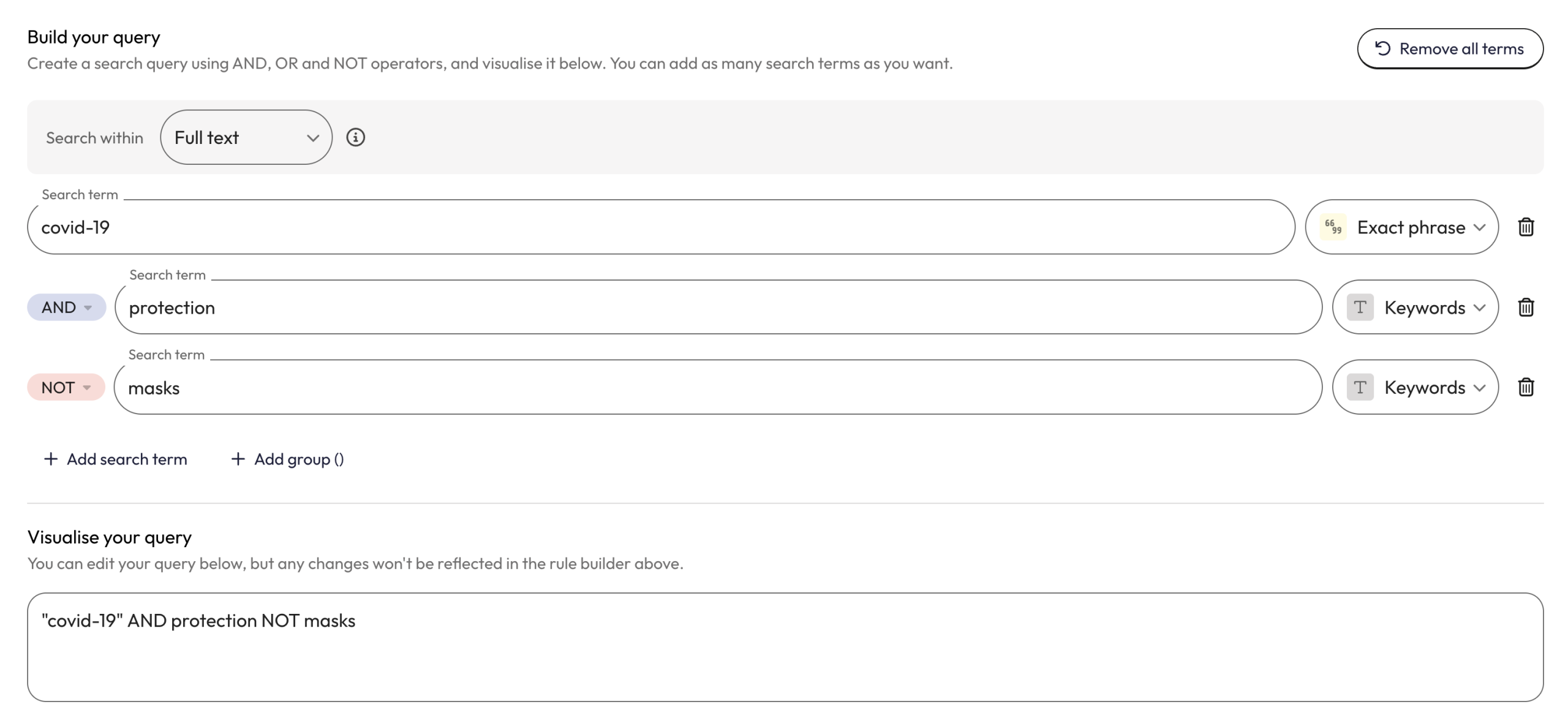
Example: "covid-19" AND protection NOT masks
This query finds documents that contain both “covid-19” and “protection” but do not contain the word “masks” within the full-text.
Parentheses
- Use parentheses to group terms and control logical order.
- Search terms inside of the brackets are evaluated first as a separate expression.
- Add parentheses by clicking on the ‘Add group’ or ‘Add nested group’ option below the query line.
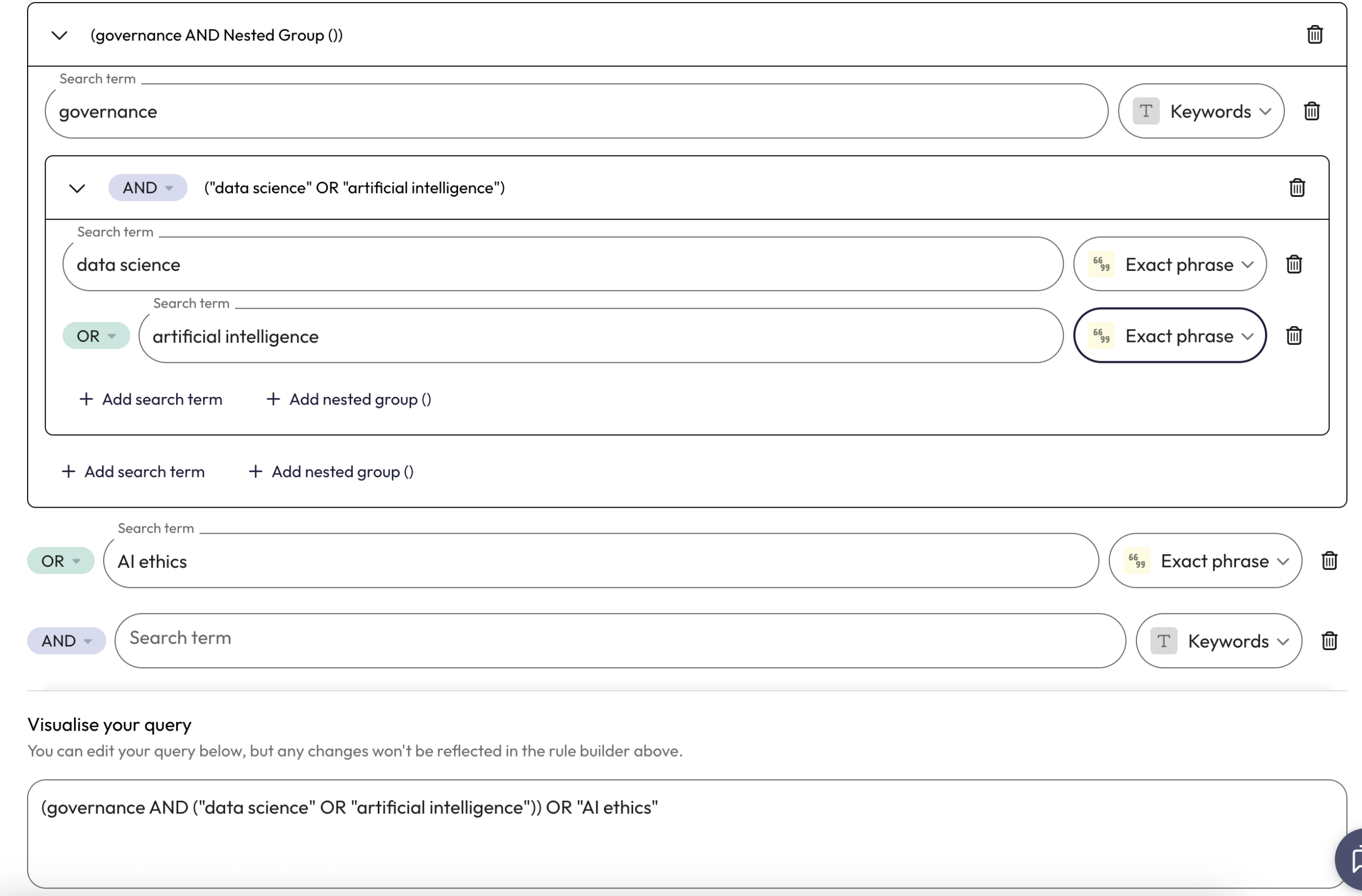
Example: (governance AND ("data science" OR "artificial intelligence")) OR "AI ethics“
This query finds documents containing governance and (data science or artificial intelligence), or contain the exact phrase AI ethics.
Phrase search
- Search terms that are not contained within quotation marks will be searched for as individual words.
- For example:
income taxwill match documents where there are instances of income and tax but not necessarily adjacent. - Find documents where your words appear together in a phrase by selecting ‘exact phrase’ from the dropdown box to the right of the query line.
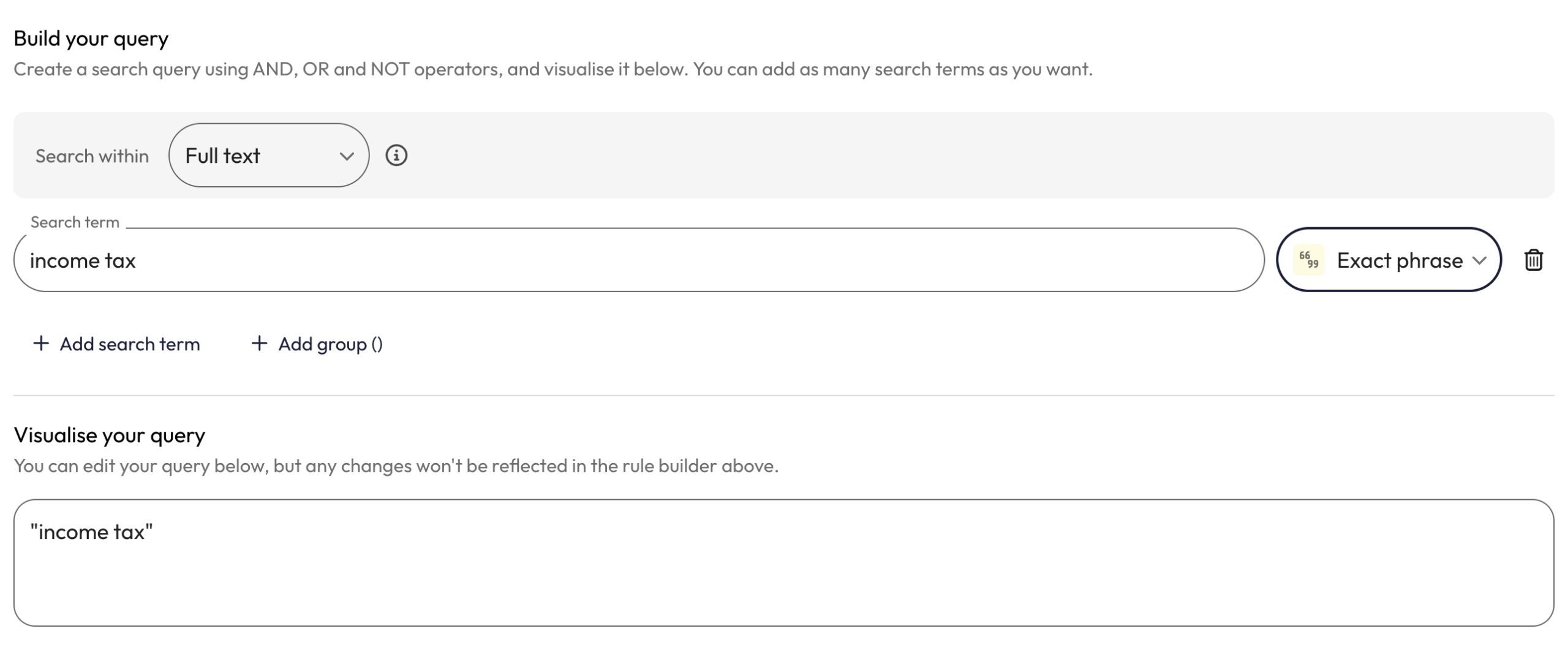
Example:"income tax"
This query finds documents where “income tax” appears as a phrase with these words in this exact order within the full-text.
Proximity search
- Search for words occurring near each using the ~N operator.
- “N” is how many words are allowed in between each part of your phrase.
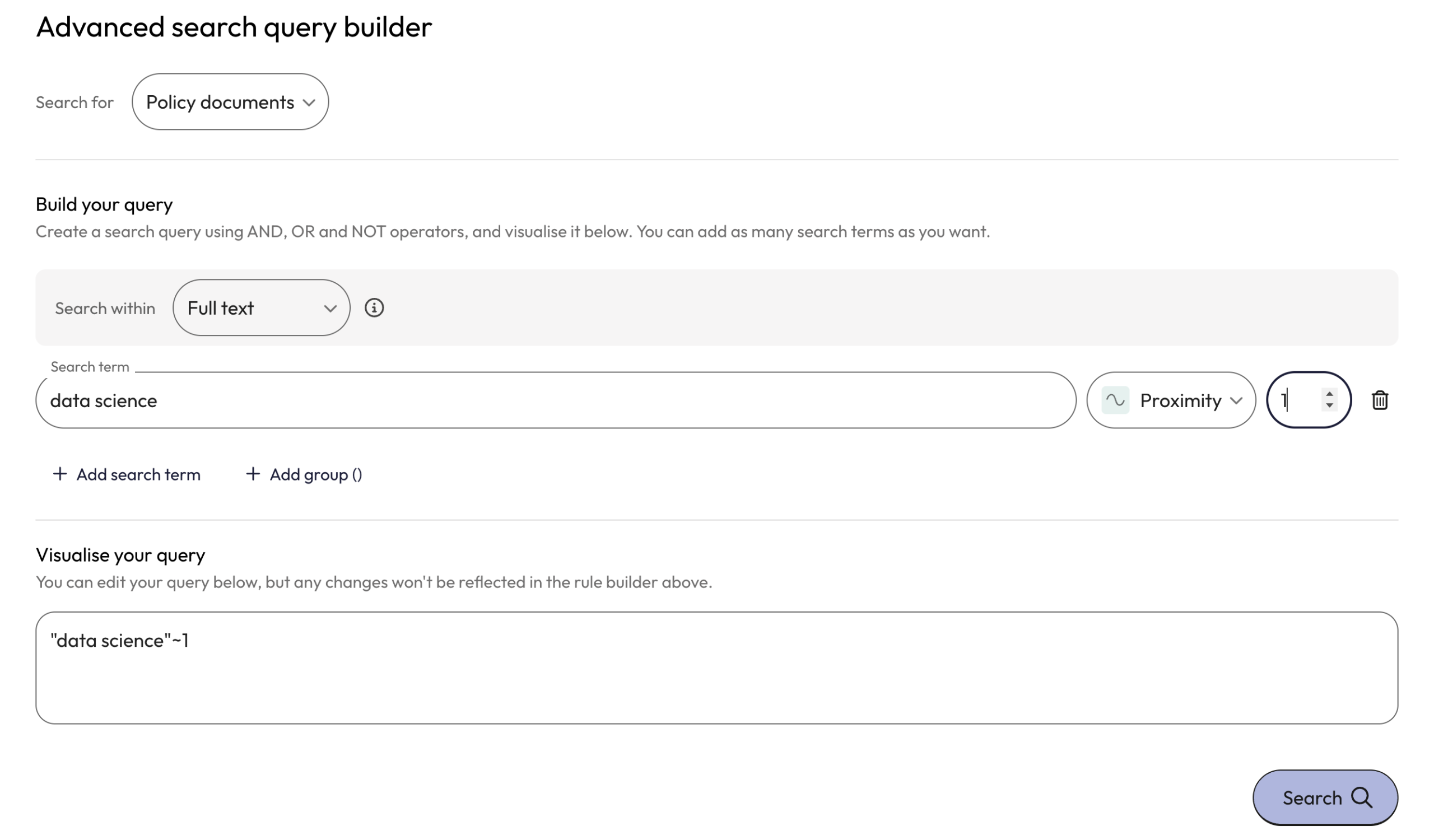
Example:"data science"~1
This query finds documents containing the words “data” and “science” next to each other or with one word between them where “data” appears first and “science” appears second.
In this example, “data science” and “data and science” would match, but “data indicates that science” and “science of data” wouldn’t.
Semantic search
- Semantic searching focuses on meaning rather than exact keyword matching.
- Using the similar search will find documents that share semantic similarity with the text you have used in your search.
- Run a semantic search by selecting “Similar” from the “Search within” dropdown box at the top of query builder and entering at least 2 lines of text into the query box.
- You can use Overton’s AI generated document summaries to search for other similar documents – just copy and paste the summary into the query builder and run a search.
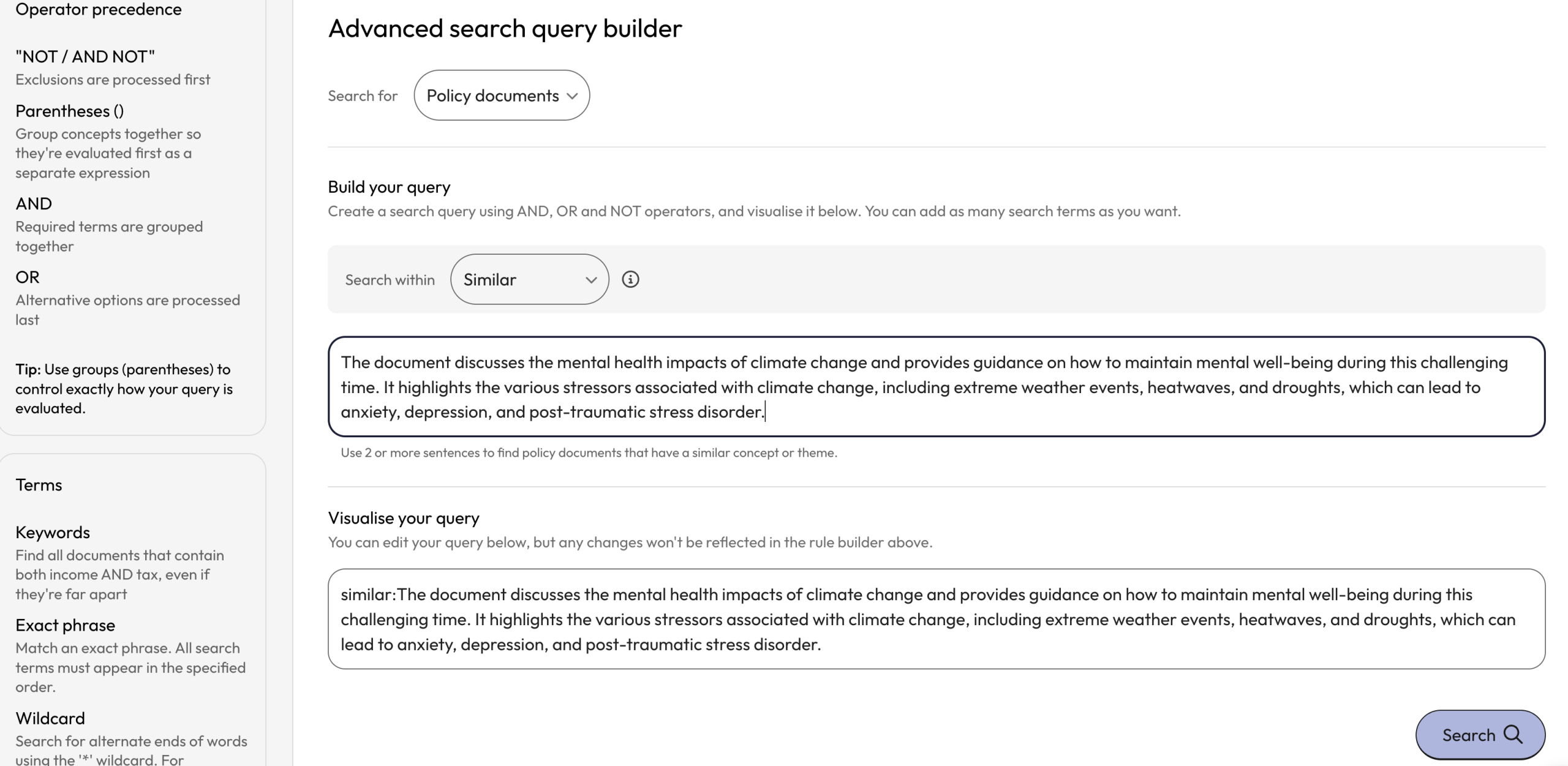
Example:The document discusses the mental health impacts of climate change and provides guidance on how to maintain mental well-being during this challenging time. It highlights the various stressors associated with climate change, including extreme weather events, heatwaves, and droughts, which can lead to anxiety, depression, and post-traumatic stress disorder.
This query finds documents that will share similar context and content.
Learn more about ‘Searching for Similar Policy Documents.’
Special characters and accents
- Overton is sensitive to diacritics, accents or special characters.
- Searching Overton for “nino” will return different results than a search for “niño”.
- When conducting a search for an individual in the People search, we recommend including special characters.
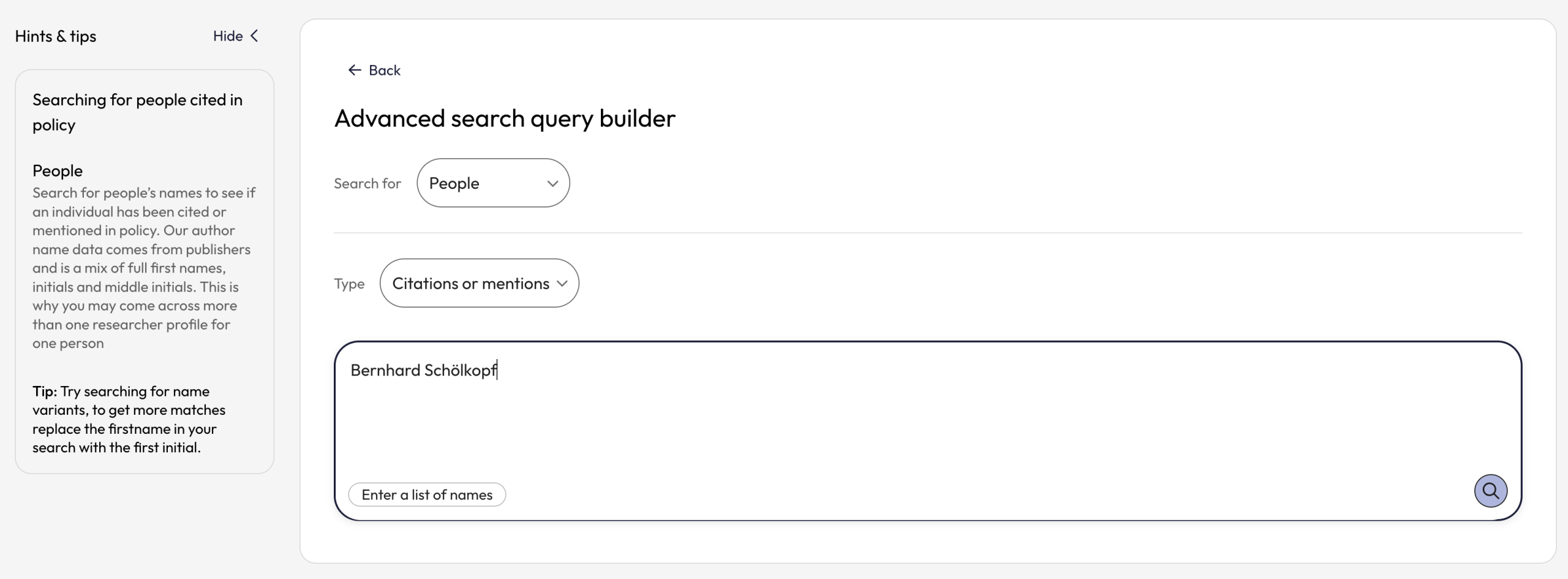
Example: “Bernhard Schölkopf” rather than “Bernhard Scholkopf“
Specific field searches for policy documents
- Users can search within specific fields such as full-text, title, abstract, domain, policy organisation author or similar.
- Users can only search within one field per query. Multi-field searching is not yet supported.
- The field is selected by clicking on the ‘Search within’ dropdown near the top of the query builder.
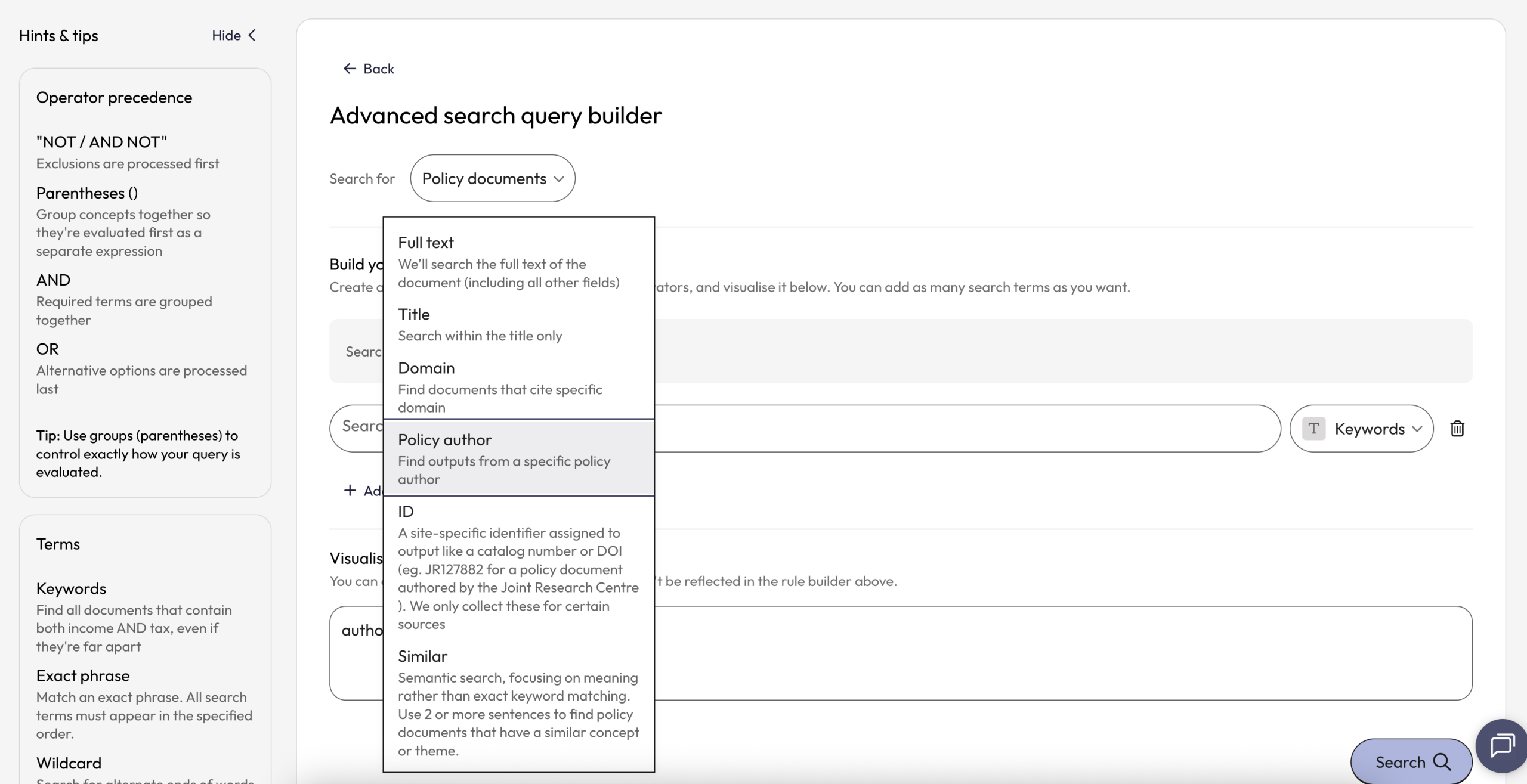
Explanation of search fields for policy documents
- Full-text:searches within the full-text of policy documents including all the other fields.
- Title: searches within the title only.
- Domain: will return documents that cite specific domains.
- Policy author: will find outputs from a specific organisational policy author.
- ID: A site-specific identifier assigned to output like a catalog number or DOI (eg. JR127882 for a policy document authored by the Joint Research Centre ). We only collect these for certain sources.
- Similar: Semantic search, focusing on meaning rather than exact keyword matching. Search is conducted using our AI generated document summaries.
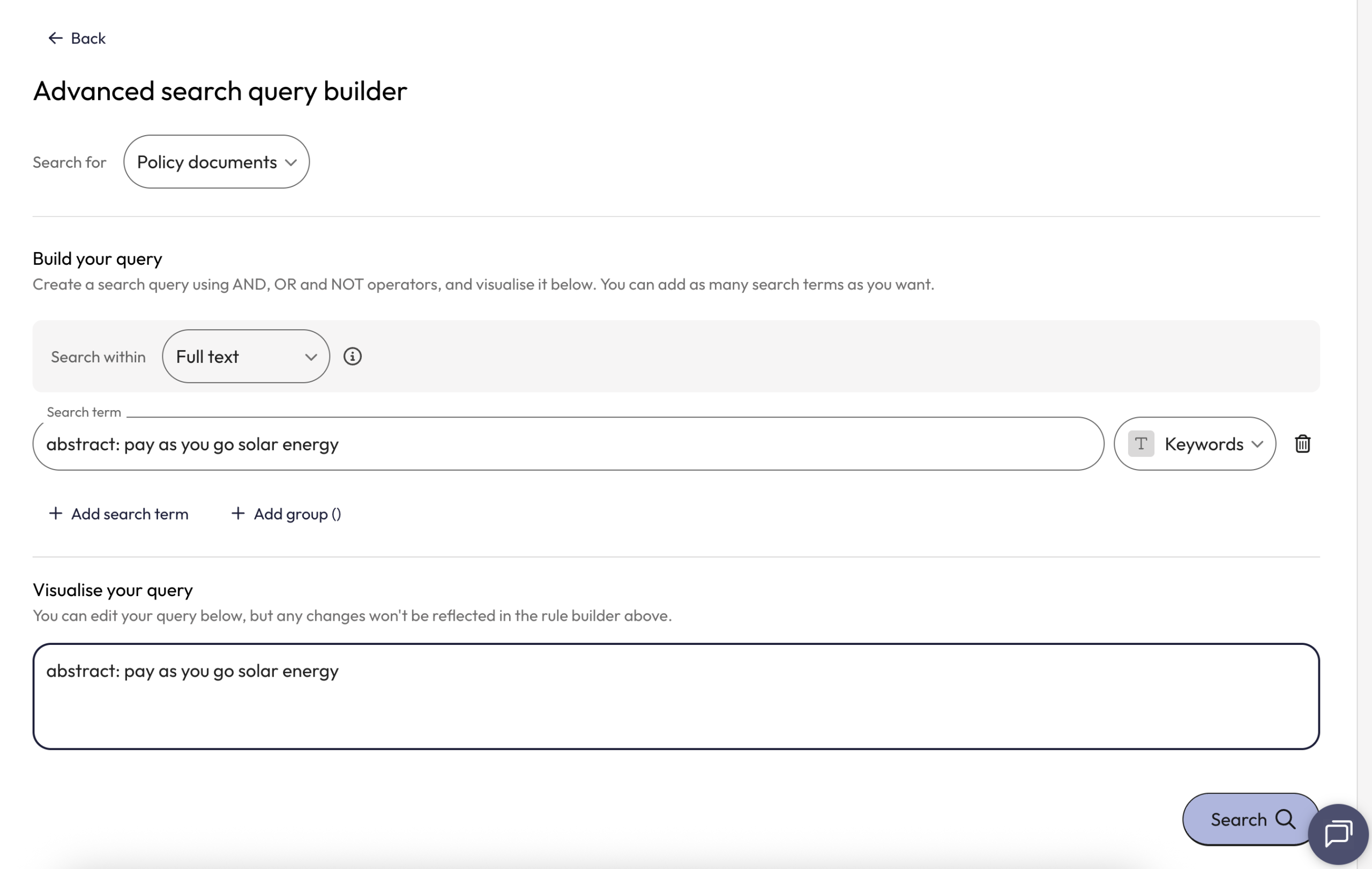
Additionally, users can search within the title and abstracts of policy documents simultaneously.
- This field search requires manual entry in the query builder using the prepend
abstract:before the search terms. - The limitation to this search as many policy documents do not have author provided abstracts.
Specific field searches for scholarly articles
- Users can search within specific fields such as author, title, abstract, ID or within all these fields simultaneously using ‘All fields.’
- Users can only select one field option per query.
- The field is selected by clicking on the ‘Search within’ dropdown near the top of the query builder.
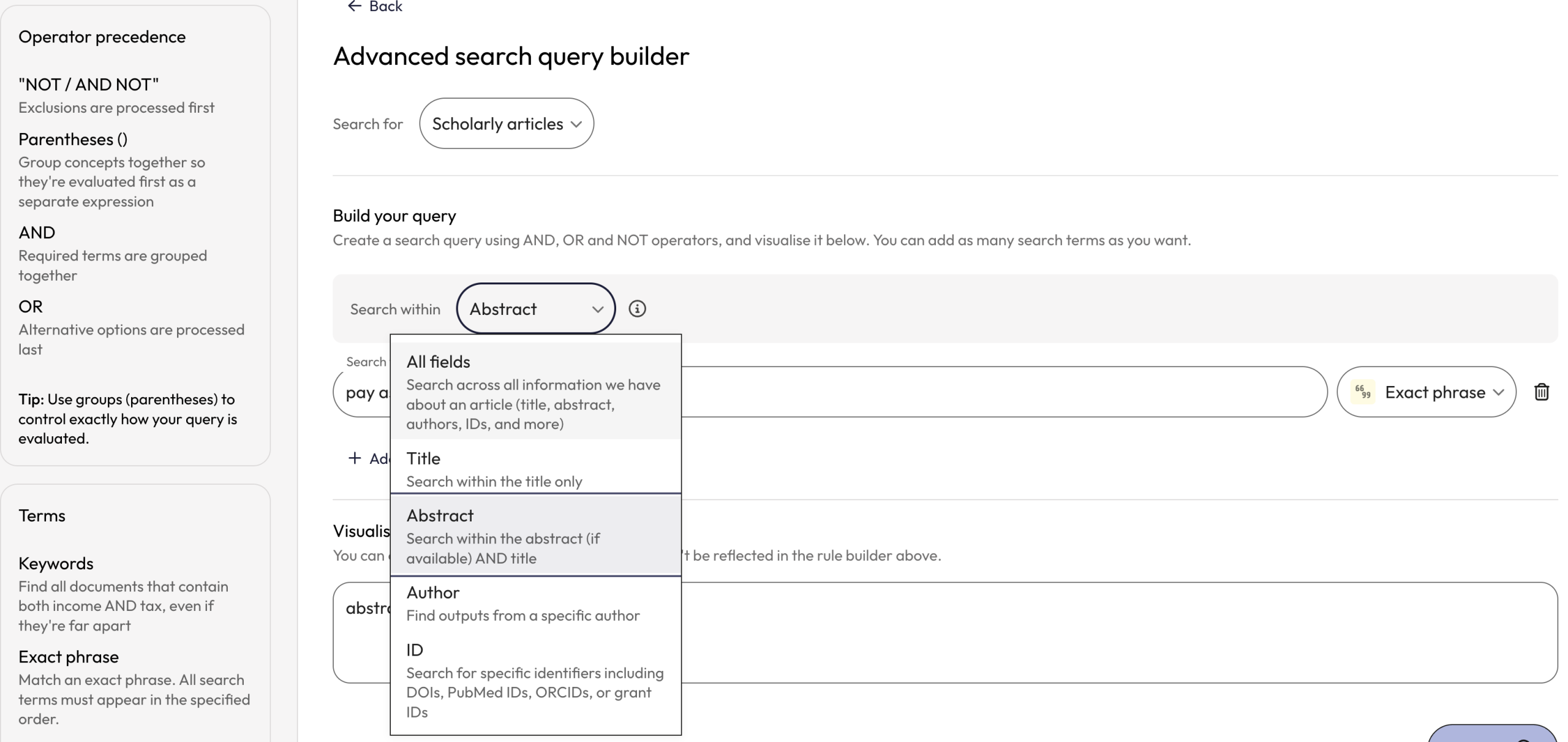
Explanation of search fields for scholarly articles
- All fields: searches within all available metadata fields for scholarly articles including title, abstract, authors, IDs and more.
- Title: searches for words within the title of scholarly articles only.
- Abstract: will find articles with the words within the title or abstract of scholarly works.
- Author: finds scholarly outputs authored by a specific person
- ID: searches for specific identifiers including DOIs, PubMed IDs, ORCIDs, or grant IDs.